
For the crew · 5 min read
Clock in and out with the BuildMore app
Sign in once with your company code, e-mail and password. After that, you open the app on site and tap Clock in when you start and Clock out when you leave. You do not punch for lunch: the break comes off under your employer's rule.
Step by step
-
Step 1
Sign in
Open BuildMore and type the Company code your employer gave you, such as ACME2026, your Email and your Password. Tap Sign in.
The first time, a Before you start screen asks for Location and Camera. Tap Allow on both, then Continue. You can skip them, but your employer decides what a punch needs, and a missing permission can stop you on site.
-
Step 2
Clock in when you start
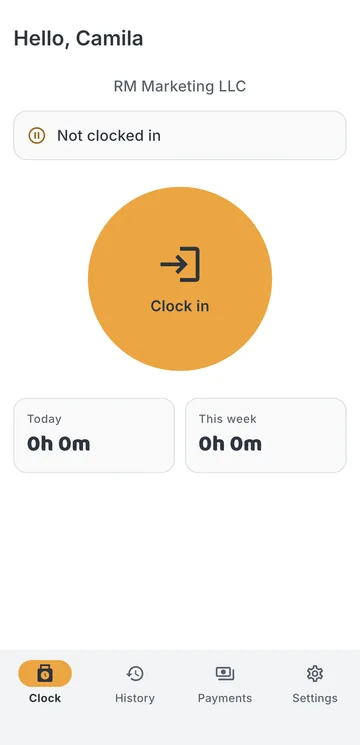
The Time clock screen says hello and shows
Not clocked in
. Tap Clock in.Your location is read only at that moment, to check you are at the job site. The app does not follow you during the day. When the punch is saved, you see
Punch recorded at 7:02 AM
and the screen changes toWorking since 7:02 AM
.
-
Step 3
Confirm, or take the photo
What comes next depends on your company:
- No selfie required: the app asks
Clock in?
. Tap Yes. The time is recorded right then and cannot be edited later. - Selfie required: an Identity check opens. Take the photo, then tap Use this photo, or Retake.
If your company refuses punches outside the site, the app tells you how far away you are and asks you to move closer.
- No selfie required: the app asks
-
Step 4
No signal is fine
In a basement or a new subdivision, punch as usual. The punch is saved on the phone with the time you tapped, and the screen shows
1 punch waiting for signal
. It reaches your employer as soon as there is signal again.If your employer's system ever refuses a punch, you see
A punch was not accepted
. Talk to your supervisor so the hours are recorded. -
Step 5
Clock out when you leave
Tap Clock out at the end of the day. There is no break button: lunch comes off under your company's rule, shown as
Lunch: 30m off
.Today and This week show your totals after the deduction, the same numbers the office sees. If you forget to clock out, the app warns you that a shift was left open. Tell your supervisor what time you left so they can record it.
-
Step 6
Check your week and each day
Open History. It shows one week, Sunday to Saturday. Use Pick the week to choose This week, Last week or the three before.
Tap a day to see Arrived, Left, the Job site, Lunch (company rule) and Day hours. If your company allows it, Fix this day's times lets you send the right times with a note. Otherwise, tell your supervisor, who corrects it in the office.
-
Step 7
See your payments
Open Payments. Each pay period shows as Current or Closed, with your Hours, the Estimated amount at your rate and what is Paid.
Tap See the days for the days behind the total and the Payments received your employer recorded, with their note, such as a check number. These are estimates for your reference. Your official pay is what your employer pays you.
-
Step 8
Change the language
Open Settings and tap Language. Choose English, Español or Português, or System default to follow the phone. The whole app switches right away. Times stay in AM/PM in every language.
On a phone with Face ID, turn on Sign in with biometrics to open the app with your face instead of typing your password.
Frequently asked questions
Does the app track me all day?
No. Your location is checked only while you punch in or out, to confirm you are at the work site. The app never follows you in the background.
I forgot to clock out. What do I do?
Tell your supervisor what time you left. They record it in the office, and the day updates in your History.
Why is my day shorter than the time I was on site?
Your company's lunch rule takes the agreed break off each day. The day screen shows it as Lunch (company rule).
More of what BuildMore does
GPS time clock app
One tap to clock in on site. The punch carries the time, the job site and, if you ask, a photo.Works with no signal
Punches are saved on the phone in a basement or a new subdivision and sent when the signal comes back.English, Spanish, Portuguese
Each worker picks a language in the app. The office panel speaks all three too.Put it in front of a crew on Monday
30 days free, no card. Unlimited crew on every plan.